
How to Migrate From a Shared Email Inbox to a Ticketing System
Moving your IT support off a shared email inbox requires more than just new software. Learn how to structure requests, route issues, and drive user adoption.
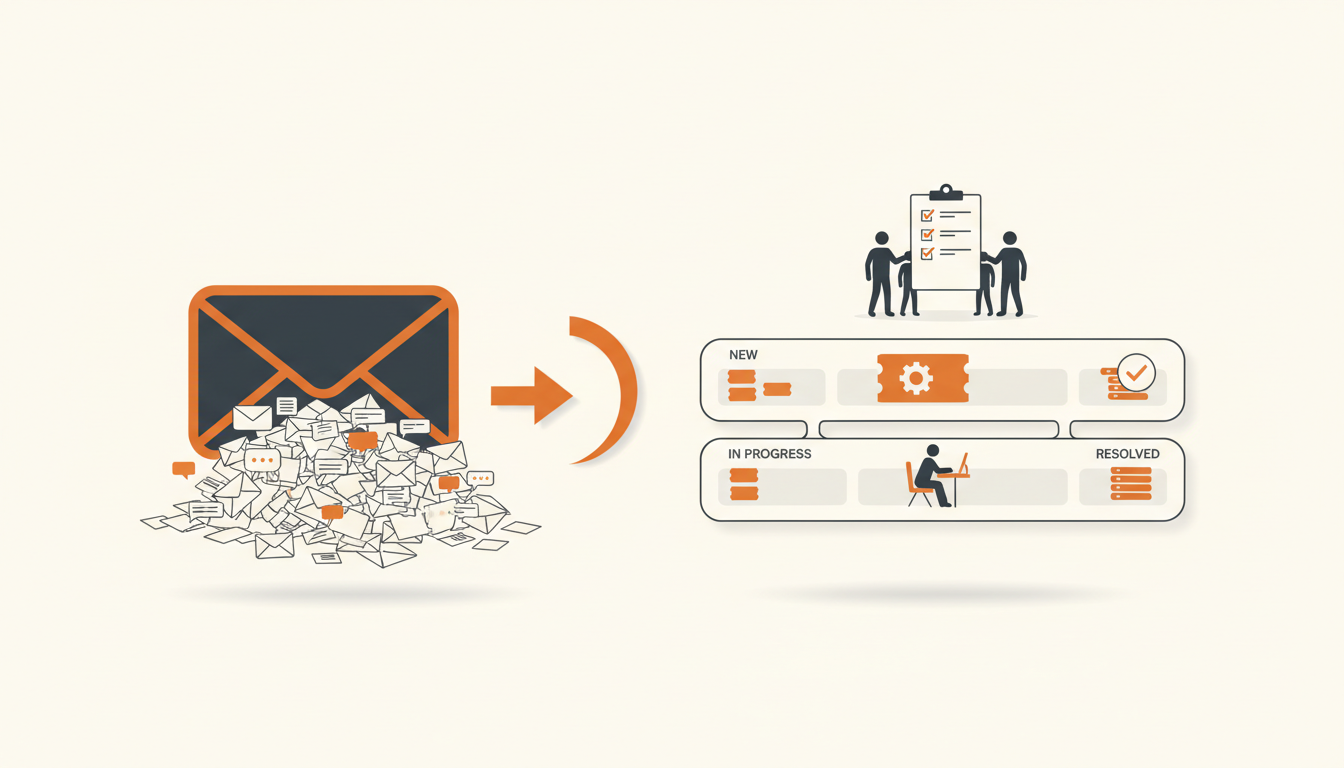
Moving from a shared email inbox to a dedicated ticketing system requires converting free-text chaos into structured, trackable data. You must audit your highest-volume email requests, build a service catalog to standardize those inputs, and implement automated routing rules so the system triages issues before a human intervenes. Success hinges on designing an employee portal that is easier to use than sending an email, rather than forcing users through overly complex forms.
The Breaking Point: When a Shared Inbox Fails Your Operations
Shared email accounts work reasonably well when you have one or two people fielding a handful of requests daily. As headcount scales past 20 or 30 employees, the operational cracks begin to show. Email was designed for asynchronous, one-to-one communication, not collaborative workflow management. When an IT or operations team attempts to manage requests via a shared inbox, they inevitably run into systemic failure modes.
The first major failure is collision. Without clear ownership markers, two technicians often end up working on the exact same problem concurrently, or worse, replying to the end user with conflicting instructions. The inbox provides no native mechanism to assign a task other than forwarding the email, which fractures the communication thread. The second failure is the loss of institutional memory. When a complex issue is resolved in an email thread, that solution is buried. It cannot be easily searched, categorized, or surfaced the next time the same problem occurs.
Finally, there is the complete lack of structured data. An email subject line reading "Broken" gives a technician zero context. The resulting back-and-forth required just to extract the device name, error code, and urgency wastes time. A dedicated system forces structure onto the request at the moment of intake, drastically reducing the time it takes to begin actual troubleshooting.
Mapping Your Current Chaos: The Pre-Migration Audit
Before you configure a single rule in your new system, you must understand exactly what traffic is flowing through your current shared inbox. Blindly pointing your support email address at a new tool will just import your existing chaos into a different user interface.
Identify Volume and Velocity
Spend a few hours categorizing the last 300 to 500 emails in your shared inbox. You are looking for patterns. Group these emails into broad buckets: password resets, hardware requests, software access, vendor notifications, and "how-to" questions. You will likely find that 80 percent of your volume stems from just five or six repeatable request types. These high-volume categories will dictate the initial design of your new system.
Assess the Back-and-Forth Tax
Look specifically at how many replies it takes to resolve a standard request. If an employee asking for a software license typically requires three replies to gather manager approval, cost center details, and business justification, note that down. This "back-and-forth tax" represents the exact data fields you will need to require upfront in your new intake process.
Designing the New Intake Process: From Blank Canvas to Structured Requests
The single biggest advantage of leaving an email inbox behind is the ability to dictate how information arrives. Instead of offering employees a blank canvas, you offer them a menu.
Replacing Free Text with a Service Catalog
A Service Catalog is a browsable menu of pre-approved requests. When an employee clicks "Request New Laptop," they do not get a blank email body. They get a form that specifically asks for their department, shipping address, and preferred operating system. This pre-fills the ticket with actionable data. By establishing an internal helpdesk structured around specific service requests, you eliminate the investigative phase of IT support.
Balancing Friction and Usability
There is a delicate balance here. If you make your forms too complex by requiring 15 mandatory fields, employees will abandon the portal and find a backdoor—usually pinging technicians directly via direct message. Keep intake forms strictly limited to the information required to take the very first step toward resolution. Let the employee portal offer a choice of traditional forms for standard requests, or an AI chat intake for generalized questions that do not easily fit a predefined category.
Step-by-Step Migration Checklist
Executing the migration requires a phased approach. A hard cutover without preparation usually results in lost requests and frustrated employees. Follow this specific sequence:
- Document your routing logic: Write down exactly who handles what. Which specific group handles networking issues versus software licensing?
- Establish your Groups and Assignment Rules: Replicate that logic in the system. Configure first-match routing rules so incoming tickets are immediately assigned to the correct team.
- Build the Knowledge Base: Draft five to ten articles answering the most common "how-to" questions you found during your audit. Grounding employee self-serve search in a Knowledge Base ensures common questions never need to become tickets.
- Configure the Service Catalog: Build the intake forms for your top five most frequent requests.
- Set up Configurable SLA rules: Define basic expectations. For example, assign a 4-hour response time for "High" priority incidents and a 24-hour response time for "Low" priority service requests.
- Configure Approval Workflows: For requests requiring manager sign-off (like new hardware), build the approval steps directly into the ticket type.
- Run a Soft Launch: Have the IT team use the system internally for a week. Forward a subset of the shared inbox emails into the system to test the routing rules.
- Execute the Hard Cutover: Announce the transition, redirect the main support email to generate tickets automatically, and launch the employee portal.
Illustrative Example: Moving a 60-Person Logistics Company Off Email
Consider an illustrative example of a regional logistics company operating with a 60-person staff and a two-person IT and operations team. For years, dispatchers and warehouse workers emailed a generic "support" address whenever scanners broke or software crashed. The two technicians spent the first two hours of every shift just reading through the inbox, manually sorting urgent dispatch issues from routine printer complaints, and messaging each other to ask, "Are you grabbing this one?"
During their migration, they identified that scanner configuration issues were their highest-impact incidents. They built a specific intake flow for broken scanners that captured the device serial number and physical location immediately. They also implemented QueAssist to automatically categorize and prioritize tickets on arrival. Because the AI triaged the incoming requests based on content, critical dispatch-blocking issues were instantly routed to the senior technician with a "High" priority tag. The outcome was highly qualitative: the morning routine dropped from hours of manual sorting to minutes of targeted action, and technicians stopped stepping on each other's toes.
Routing and Rules: Automating the Triage Phase
In a shared inbox, triage is a purely manual administrative burden. A technician must read the email, understand the context, decide urgency, and assign it. In a ticketing system, this phase should be almost entirely automated.
First-Match Routing to Teams
Assignment rules should operate on a first-match basis. If a ticket contains the keyword "network" or is submitted through the "Wi-Fi Issue" catalog item, it should route directly to the infrastructure group. By utilizing Groups for team-based ownership, you ensure that even if an individual is out sick, the ticket sits in a monitored queue rather than languishing in a personal inbox.
AI-Powered Categorization
Modern platforms use artificial intelligence to read the context of incoming requests that do not follow a strict form. QueAssist acts as an AI-powered ticket triage layer, assessing the language to determine if the user is locked out of an account or just asking for a software tutorial. It categorizes, prioritizes, and routes these tickets instantly. For highly documented, repetitive issues, you can even enable QueAssist agentic auto-resolution, which automatically resolves common requests like password resets by referencing the organization's own Knowledge Base, completely bypassing the human technician.
Tailoring the Setup for Your Team Size
The complexity of your migration will depend entirely on your headcount and organizational maturity. The configuration requirements for a small startup look vastly different from those of an established mid-market company.
The 20 to 50 Employee Bracket
At this size, keep things exceptionally simple. Do not implement complex ITIL ticket types like Problems and Changes yet. Stick purely to Incidents (something is broken) and Service Requests (I need something). Your goal is simply establishing a single source of truth. Since budgets are often tight at this stage, look for software that offers flat monthly pricing per workspace rather than penalizing you with per-seat agent licenses as your IT team grows.
The 100 to 300 Employee Bracket
In the SME space, you need strict audit trails. This is where you separate Incidents from Service Requests and begin enforcing approval workflows. You will need CSAT surveys to measure employee satisfaction and SLA rules to ensure vendor agreements are met. The focus shifts from merely capturing requests to optimizing how efficiently they move across different departments, often expanding beyond IT into HR and Facilities.
Change Management: Getting Employees to Actually Use the System
The most technically perfect ticketing system will fail if employees refuse to use it. Change management is the hardest part of this migration.
The Carrot and The Stick
You must provide a "carrot" by making the new system objectively better for the end user. The employee portal should be clean, fast, and transparent, showing them exactly where their request sits in the queue. The "stick" involves holding the line on process. When an employee invariably sends a direct email or walks up to a technician's desk, the technician must politely say, "I can absolutely help you with that, but I need you to put it in the portal first so I can track my work." Do not make exceptions, or the new process will erode.
Handling the Email Forwarder
During the transition, you will likely set up a rule that forwards emails sent to the old shared inbox directly into the ticketing system. This is a necessary safety net, but it is dangerous if left indefinitely. If employees realize they can still just send a blank, unstructured email to the old address and have a ticket magically created, they will never use your carefully designed Service Catalog. After a 60-day grace period, configure the old email address to auto-reply with a polite notice stating that the inbox is no longer monitored, containing a direct link to the new portal.
Common Migration Mistakes to Avoid
Migrations frequently go sideways when IT teams over-engineer the solution or ignore the user experience. Avoid these specific failure modes.
Creating Too Many Categories
When migrating, there is a temptation to create a category for every conceivable piece of software and hardware in the building. A dropdown menu with 85 options guarantees that the user will just select "Other" or "Miscellaneous" every single time. Start with broad, functional categories (Hardware, Software, Network, Access) and let the technicians refine the classification after the ticket is resolved.
When Not to Automate Closures
Do not configure rules that aggressively auto-close tickets after 24 hours of user inactivity. If an employee is traveling or out sick, returning to find their unresolved issue marked "Closed" creates immense frustration. Set a reasonable threshold—like three days with at least two automated follow-up reminders—before the system transitions a ticket to a closed state.
Defining Success: Metrics for Your First 90 Days
Once the system is live, you need to prove that the migration was worth the effort. Do not measure success by the raw number of tickets closed; a high volume could just mean your infrastructure is failing. Instead, focus on efficiency and experience.
Time to Assign and First Contact Resolution
Measure the "Time to Assign"—the gap between a ticket arriving and a technician taking ownership. In a shared inbox, this is usually measured in hours. With proper assignment rules, it should drop to minutes. Next, track First Contact Resolution (FCR). Because your intake forms now demand the right information upfront, technicians should be able to resolve a much higher percentage of issues on their very first reply, without the agonizing back-and-forth.
Qualitative Feedback
Finally, rely on CSAT surveys. A simple thumbs-up or thumbs-down appended to resolved tickets will give you immediate feedback on whether the new process is helping or hindering your workforce. If CSAT drops post-migration, your forms are likely too restrictive or your SLA targets are completely misaligned with user expectations.
Escaping the gravity of a shared inbox is the single highest-leverage operational upgrade an IT team can make. If you are ready to implement structured intake, automated triage, and agentic resolution without the crushing complexity of legacy enterprise software, it is time to try QueueDesk for your team.
Get started today
Ready to fix internal support?
Free Starter plan. No credit card. Up and running the same day.
Start freeFrequently asked questions
What happens to the old shared email address after we migrate?+
During the initial transition, you should configure the old email address to automatically forward into the new ticketing system to catch stragglers. After a 30 to 60 day grace period, change this to an auto-responder that provides a direct link to your new employee portal, clearly stating the old inbox is no longer monitored.
Should we migrate all of our historical emails into the new system?+
No. Importing thousands of unstructured, historical emails into a new ticketing system clutters your database and ruins your clean slate. Keep the old shared inbox archived and searchable for reference, but start the new system completely fresh on day one.
How do we handle external vendors who only communicate via email?+
Most ticketing systems allow you to whitelist specific external domains or maintain a dedicated support email that ingests messages and creates tickets. You can isolate this traffic to a specific vendor-management queue so it does not interfere with internal employee requests.
Will employees be resistant to using a portal instead of just sending an email?+
Yes, expect initial resistance. You overcome this by ensuring the portal provides instant value, such as showing them their ticket status in real-time or using AI to instantly resolve simple issues like access requests, which email cannot do.