
How to Write a Knowledge Base Article That Actually Gets Used
Learn how to write, format, and structure internal knowledge base articles that employees actually read, reducing repetitive IT and HR tickets.
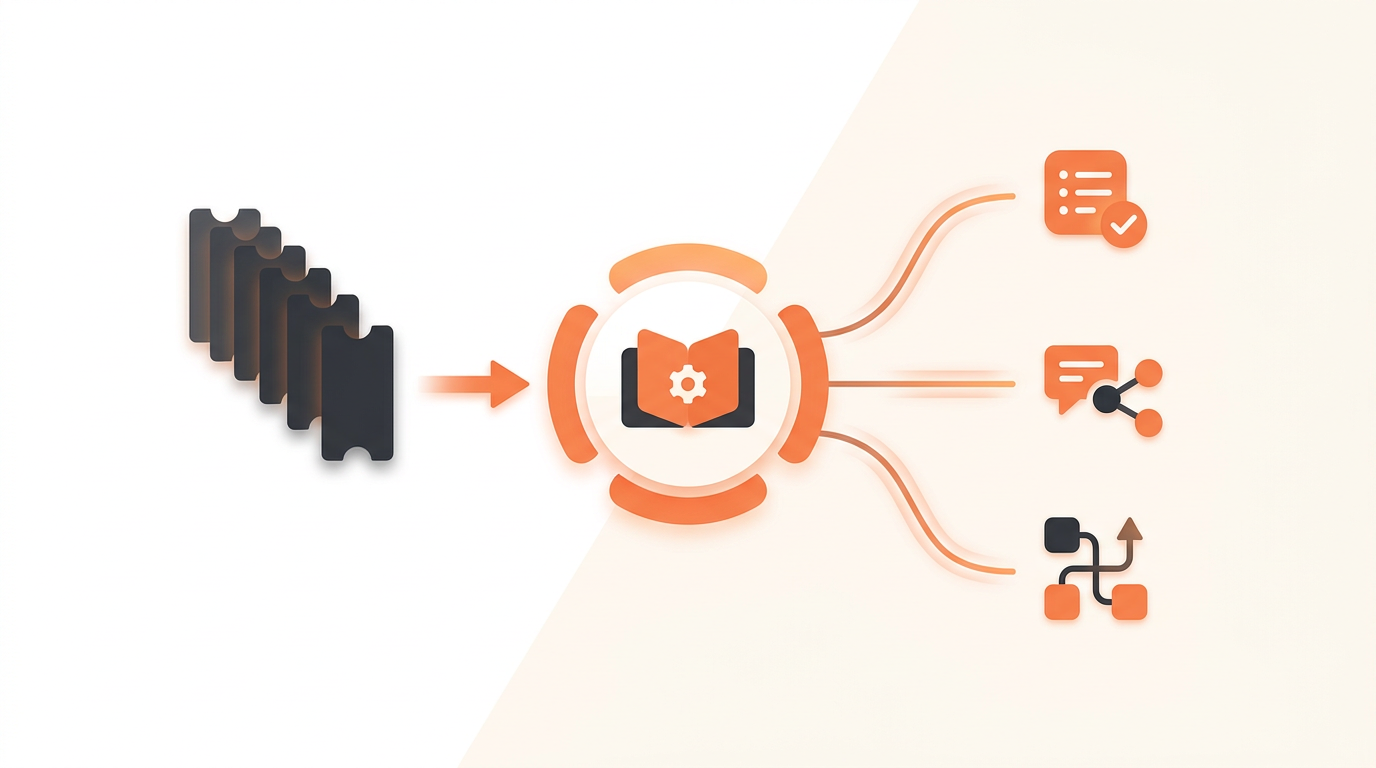
Writing a useful knowledge base article requires formatting for a panicked reader, front-loading the solution, and making the instructions machine-readable for modern auto-resolution tools. If an employee has to read more than three paragraphs of exposition to reset their VPN client, they will skip the reading and submit a ticket. The goal is rapid information transfer, meaning your writing must prioritize scannability over narrative flow.
Why Most Internal Documentation Fails
Internal documentation usually fails because the author writes for their peers rather than the end user. An IT administrator documenting a printer deployment might include details about print server architecture, VLAN configurations, and driver version history. The employee standing in front of the printer just wants to know which button to click to make their PDF print. This misalignment in intent creates a wall of text that discourages self-service.
Another major failure mode is poor searchability. Employees search using symptoms, while IT writes using root causes. A user will search "screen won't turn on," but the article is titled "Troubleshooting DisplayPort Monitor Connectivity." If the vocabulary of the article does not match the vocabulary of the frustrated user, the knowledge base becomes an invisible asset. You are writing for an audience that is annoyed, in a hurry, and lacking technical context.
Finally, stale documentation is worse than no documentation. If an employee follows a five-step guide to request software access and step three references a portal that was deprecated two years ago, trust is broken. The next time they need help, they bypass the knowledge base entirely and go straight to your intake form.
The Anatomy of a High-Deflection Article
A structured, predictable format trains your employees on where to look for specific types of information. Every troubleshooting or how-to guide should contain the same core structural elements in the same order.
Symptom-Based Titles
Titles should reflect the problem exactly as the user experiences it. Start with "How to" or "Fix for" and describe the outcome. Use "How to Reset Your Okta Password" rather than "Identity Provider Authentication Guidelines."
The Prerequisite Block
Immediately below the title, state exactly what the user needs before they begin. Do they need local administrator rights? Do they need to be on the corporate VPN? Stating this immediately prevents a user from getting halfway through a tutorial only to realize they cannot finish it.
The Actionable Steps
This is the core of the document. Keep steps completely linear. Never branch a step with "If X happens, go to step 4, but if Y happens, go to step 7." If a process branches heavily, it requires multiple distinct articles, not a choose-your-own-adventure document.
Step-by-Step: Writing a Guide Your Employees Will Follow
To produce documentation that resolves issues without human intervention, follow a strict writing process that forces clarity.
- Define a narrow scope: Tackle one specific task per article. Do not combine "How to request a laptop" with "How to configure a new laptop."
- Establish the trigger: Write down exactly what search terms or situations should lead a user to this article. Include these terms naturally in the first paragraph.
- Use the imperative mood: Start steps with action verbs. Write "Click the blue Submit button" instead of "The user should then proceed to click on the Submit button."
- Limit steps to a single action: Do not write "Open the control panel, navigate to network settings, and disable your Wi-Fi adapter" as one step. Break that into three distinct, numbered lines.
- Test with a non-technical proxy: Hand the draft to an employee outside the IT department. Watch them try to execute the steps without answering their questions. Note where they get stuck and rewrite that step.
Formatting for Scannability and Speed
Visual formatting does as much work as the words themselves. Employees do not read knowledge bases; they scan them for UI elements, bold text, and warnings. Use typography to create a visual hierarchy.
| Element Type | Formatting Rule | Example Application |
|---|---|---|
| UI Components | Bold text | Click Save Changes. |
| Keyboard Shortcuts | Capitalized, joined by a plus sign | Press CTRL + SHIFT + ESC. |
| File Paths or Code | Monospace font or code blocks | Navigate to C:\Windows\System32. |
| Warnings or Caveats | Blockquotes or callout boxes | Save your work before proceeding; this requires a reboot. |
Use bulleted lists when item order does not matter (e.g., a list of supported devices) and numbered lists strictly for chronological steps. Mixing these up confuses readers about whether they need to complete every item or just pick one from the list.
Tying Knowledge to Agentic Automation
Modern internal support systems do not just present articles for employees to read; they read the articles on behalf of the employee and execute the fix. This shift completely changes how you must approach your documentation. When an employee submits a ticket complaining about access, a platform with agentic auto-resolution can parse the employee's request, query your knowledge base, and automatically trigger the password reset or provisioning workflow if the documentation provides clear rules.
To enable this, articles must be devoid of ambiguity. An AI agent struggles with phrases like "You should usually try restarting your router, but sometimes that isn't necessary." It thrives on absolute logic: "If the VPN client displays Error 404, restart the router." Structuring your documentation as clear logical gates allows AI to triage, categorize, and resolve the ticket before a human agent even sees it in the queue.
You also need everyone on the team contributing to this knowledge graph. When licensing limits who can write articles, documentation stagnates. By utilizing a model with flat monthly pricing per workspace, you ensure that every technician, from tier 1 support to systems engineers, can author and update documentation without rationing seats. The larger the author pool, the more robust the data set powering your auto-resolution.
Writing for Different Audiences: Technical vs. Non-Technical
You cannot use the same tone for a developer troubleshooting a Docker container and a marketing manager trying to connect to the office projector. Knowing your audience dictates your assumptions about baseline knowledge.
For Non-Technical End Users
Assume zero prior knowledge, but do not be condescending. Avoid jargon entirely. Instead of saying "Verify your DNS resolution," say "Make sure you are connected to the corporate Wi-Fi network." Provide visual anchors like screenshots for every major interface change, as non-technical users rely heavily on pattern matching to ensure they are on the right track.
For Technical Teams
Engineers and developers hate fluff. Strip out all introductory exposition. Provide the exact terminal commands, configuration blocks, or registry keys immediately. A developer does not need a screenshot of a terminal window; they just need the script. If the process requires specific permissions, list those exact Active Directory or AWS IAM groups in the prerequisite block.
How to Measure Whether Your Articles Actually Work
Writing the article is only the first phase; you must measure its impact to justify the time spent creating it. The most common vanity metric is "page views," but high page views can actually indicate a poorly designed system if users are repeatedly visiting an article because the instructions fail to fix their issue.
Focus instead on ticket deflection rate. Measure the volume of specific ticket categories (e.g., VPN issues) before and after publishing the relevant article. If you write an excellent guide on VPN configuration but still receive thirty VPN tickets a week, the failure is in distribution, not content. The system must present the article to the user at the exact moment they attempt to submit the ticket.
Additionally, monitor the feedback scores attached to articles. A simple "Did this solve your problem?" thumb-up or thumb-down poll provides instant signal. If an article has a 20% success rate, it is actively frustrating your staff. Pull it down, audit the steps, and republish it only when verified.
Common Mistakes and When NOT to Write an Article
A common trap for IT operations is attempting to document every possible scenario. Not every issue deserves a knowledge base article. Writing an article for a one-off error that a single user experienced wastes time and clutters your search results.
You should absolutely avoid writing knowledge base articles for processes that require strict managerial or security approval. For example, do not write a "How to provision a new AWS production server" article and leave it in the general knowledge base. Employees will read it, attempt it, fail due to permission errors, and generate a messy ticket. Instead, that process belongs in a Service Catalog—a structured menu where the user submits a pre-approved request that routes through proper SLA rules and management approvals.
Another frequent mistake is using heavy, full-screen screenshots that quickly become outdated. If an application updates its color scheme or moves a menu bar, every screenshot in your article is instantly invalid. Use cropped screenshots that highlight only the specific button or field, minimizing the visual footprint of the surrounding UI that is subject to change.
Rollout and Change Management
You can write the best documentation in the world, but if employees are used to emailing a specific IT person directly, they will ignore the knowledge base. Changing employee behavior requires a coordinated rollout and enforced boundaries.
Consider an illustrative example: a 60-person logistics firm migrating off shared inboxes for IT support. They wrote 40 excellent knowledge base articles on day one, but their ticket volume didn't drop. The fix wasn't writing more articles; it was changing the intake workflow. They configured their employee portal to intercept common requests and present the relevant article before the form could be submitted. When employees called the desk for issues covered by documentation, the technicians politely walked them through the article rather than just doing it for them. Over a few weeks, the volume of repetitive issues dropped from hours of manual work to minutes of automated deflection.
Enforce the "Link, Don't Tell" rule among your support agents. If a user asks a question that is documented, the agent should reply with the link to the article, not a typed-out answer. This trains the employee that the knowledge base is the source of truth, establishing a habit of self-service for future issues.
Transitioning your company from manual hand-holding to efficient self-service requires more than just a wiki; it requires a platform built to route, resolve, and deflect repetitive work intelligently. Stop answering the same ten questions every morning and start your free trial of QueueDesk today.
Get started today
Ready to fix internal support?
Free Starter plan. No credit card. Up and running the same day.
Start freeFrequently asked questions
How often should I review and update existing knowledge base articles?+
Set a routine review cycle based on the volatility of the subject. Software instructions should be reviewed quarterly or whenever a major system update is deployed. Evergreen policies (like hardware return procedures) can be reviewed annually. Track article feedback—a sudden spike in 'unhelpful' ratings usually means the process has changed and the article needs immediate updating.
Should we allow employees outside of IT to write documentation?+
Yes, but with an approval workflow. Subject matter experts in HR, Finance, or Operations often know their department's specific workflows better than IT does. Allow them to draft articles, but route those drafts through a designated knowledge manager to ensure they meet your company's formatting and scannability standards before publishing.
How do I handle screenshots when user interfaces update frequently?+
Minimize screenshot usage. Rely heavily on clear text instructions (e.g., 'Click the gear icon in the top right'). When screenshots are absolutely necessary, crop them tightly around the specific button or menu you are referencing. Avoid capturing full application windows, as these show menus, sidebars, and versions that will date the image quickly.
What is the difference between a Knowledge Base article and a Service Catalog item?+
A Knowledge Base article explains how a user can fix an issue or perform an action themselves without IT intervention (like clearing a browser cache). A Service Catalog item is used when the user needs IT to execute an action for them that requires approval or provisioning, such as requesting a new software license or ordering a replacement laptop.