
How to Build Email to Ticket Automation for Support Teams
Stop dropping employee requests in shared inboxes. Learn the technical steps, routing rules, and AI configurations for proper email-to-ticket automation.
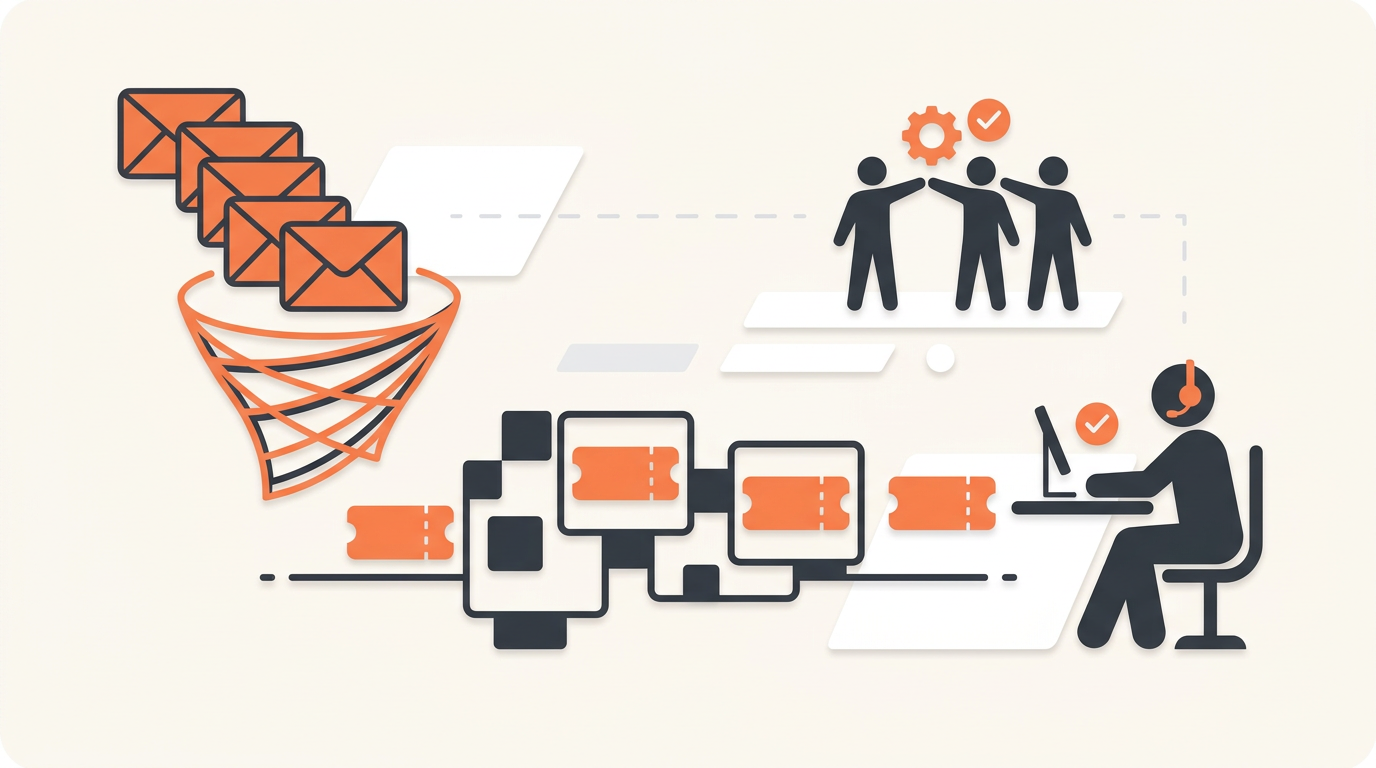
Email-to-ticket automation intercepts messages sent to a central address, strips out messy formatting, and converts them into trackable records inside a structured helpdesk. It ends the cycle of forwarded messages, dropped requests, and agents shouting across the room to ask who is handling an issue. By mapping email headers to system fields, an IT or ops team can transform a chaotic shared inbox into an organized queue with accountable owners and measurable response times.
The Breaking Point: When Shared Inboxes Fail Support Teams
Most internal operations teams start with a shared distribution list like it-support@company.com or facilities@company.com. This works perfectly when the company is ten people and the support team is one person. The system breaks when volume scales and multiple agents attempt to manage the same queue inside a standard email client. Agents step on each other's toes, send duplicate replies to employees, or assume someone else is handling a complex request, causing it to sit untouched.
Email was designed for asynchronous communication between individuals, not for collaborative task management. It lacks native states (open, pending, resolved), assignment capabilities, and time-tracking mechanisms. When you try to force an email client to act like a service desk, you rely on fragile workarounds like color-coded categories or dragging emails into personal sub-folders to "claim" them. These manual systems collapse under sudden spikes in volume, such as a localized network outage or a new software rollout.
Scaling a team to manage this inbox chaos manually introduces steep costs. If you use legacy tools that charge per seat, adding agents just to sort incoming email severely inflates your software spend. This is why forward-thinking operations teams prefer a flat monthly pricing per workspace model, which allows you to staff the desk appropriately without worrying about license penalties. Automating the intake process ensures that adding more agents actually improves resolution speed rather than just adding more cooks to a messy kitchen.
How Email-to-Ticket Automation Actually Works
At a technical level, converting an email into a structured ticket requires parsing specific data points from the Simple Mail Transfer Protocol (SMTP) payload. When an employee emails the support address, the mail server forwards that message to a dedicated routing address provided by your helpdesk software. The parsing engine then dissects the message components to build a workable ticket.
The parser extracts the Reply-To or From address and checks it against the internal user database. If the employee exists, the ticket is linked to their profile; if not, a new requester profile is generated. The Subject line maps directly to the ticket title, while the plain text or HTML body becomes the ticket description. Attachments are stripped from the MIME payload and hosted on the helpdesk's secure storage, replacing bulky email files with accessible links.
Threading is the most critical mechanic in this process. Without accurate threading, every reply an employee sends would create a brand new ticket, flooding the queue. Parsers maintain conversation continuity by injecting a unique threading token (often a hidden reference string) into the outgoing email headers and subject lines. When the employee replies, the system reads that token, locates the parent ticket, and appends the new message as a comment rather than a new request.
Illustrative Example: Moving a 60-Person Retail Operations Team Off Outlook
Consider an illustrative example of a 60-person retail operations company handling equipment requests, POS troubleshooting, and vendor onboarding through a shared Outlook inbox. Four agents spent the first hour of every shift reading through the night's emails, categorizing them, and forwarding them to specific technicians with notes like "Can you look at this?"
If an agent went on vacation, their assigned emails sat idle in a sub-folder. Employees frequently sent follow-up emails asking for updates, which generated entirely separate email threads that lacked the original context. The operations manager had no visibility into average response times or which types of issues consumed the most resources.
The company implemented email-to-ticket automation mapped to distinct assignment groups. They pointed their support address to the new helpdesk and established basic routing rules based on keywords. Within the first week, manual triaging dropped from hours to minutes. Duplicate replies vanished completely because the system locked the ticket once an agent opened it. The team finally gained a clear, qualitative view of their backlog, allowing them to shift focus from digging through email to actually solving problems.
Step-by-Step Implementation Guide for Email Parsing
Transitioning from direct email to an automated ticketing pipeline requires careful configuration to avoid dropped messages and deliverability failures. Follow this sequence to establish a reliable intake channel.
- Standardize the Origin Address: Decide on the primary email alias employees will use (e.g., help@yourdomain.com). Clean up legacy addresses by setting them to auto-forward to this new primary alias, ensuring no requests fall through the cracks during the transition.
- Configure the Forwarding Rule: Inside your mail server administration console (like Exchange Admin Center or Google Workspace), create a routing rule that pushes all mail from the primary alias to the unique forwarding address provided by your helpdesk software. Test this with a blank email to confirm the handshake works.
- Authenticate Your Domain (SPF/DKIM): This step prevents your helpdesk's automated replies from landing in the employee's spam folder. Update your DNS records to authorize the helpdesk's mail servers to send email on behalf of your domain. Publish the provided Sender Policy Framework (SPF) and DomainKeys Identified Mail (DKIM) records.
- Define Default SLA Policies: Establish the baseline timers that start ticking the moment an email is parsed into a ticket. Configure SLA rules per priority. A standard email should default to "Low" or "Medium" priority with a first-response target of four hours, preventing the queue from appearing perpetually breached.
- Establish First-Match Routing Rules: Build logic that looks at the subject line and body text. If an email contains "printer" or "paper jam," route it to the Facilities group. If it contains "password" or "access," route it to the IT group. The system evaluates these rules top-to-bottom, executing the first one that matches.
- Set Up the Auto-Responder: Configure the initial confirmation email sent back to the employee. Keep it brief. Provide the ticket number, a link to the employee portal where they can check the status, and a clear expectation of when they will hear back.
From Basic Parsing to AI-Powered Triage
Basic parsing successfully moves requests out of the inbox, but it still leaves the heavy lifting of categorization to human agents. A plain-text email is completely unstructured data. An employee might write "My screen is broken" or "I dropped my laptop," and a traditional routing rule looking for the exact word "hardware" will miss both, dumping the ticket into a generic unassigned queue.
Modern internal operations teams solve this by layering artificial intelligence over the intake process. When you build a modern internal helpdesk, AI intercepts the incoming email immediately after parsing. Rather than relying on rigid keyword matching, AI triage analyzes the semantic intent of the message. QueAssist, for example, reads the context of the employee's email, categorizes it accurately (Hardware vs. Software vs. Access), sets the appropriate priority, and routes the ticket to the correct team on arrival.
The real operational shift happens when AI handles auto-resolution. If an employee emails a common, well-documented request—like asking how to connect to the guest Wi-Fi or requesting access to a specific shared drive—QueAssist agentic auto-resolution triggers. Grounded strictly in the organization's Knowledge Base, the AI drafts and sends a verified solution back to the employee instantly, bypassing the human queue entirely. This intercepts low-level noise before it ever occupies an agent's screen.
Routing Rules vs. Service Catalogs: Structuring the Request
Even with advanced parsing and AI triage, relying purely on email for intake has limitations. Email relies on the employee remembering to include all necessary details, which they rarely do. The alternative is pushing employees toward a Service Catalog—a browsable menu of pre-approved requests that pre-fills the ticket.
Transitioning from email intake to structured portal intake is a maturity milestone for support teams. While you must maintain email-to-ticket automation for general inquiries, driving complex workflows through a Service Catalog drastically reduces resolution times by capturing exact requirements upfront.
| Feature/Behavior | Email-to-Ticket Automation | Service Catalog Portal Intake |
|---|---|---|
| Data Structure | Unstructured plain text. Prone to missing details. | Structured fields. Mandates required information. |
| Approval Workflows | Requires manual agent intervention to seek approvals. | Can trigger automatic multi-stage approval chains. |
| User Experience | Familiar, requires zero training. Just send an email. | Requires navigating to a portal, but provides faster resolution. |
| Ticket Type Deflection | Everything defaults to an Incident or generic Request. | Allows clear separation of full ITIL ticket types (Incidents, Changes). |
Measuring Success: KPIs for Automated Intake
You cannot manage what you do not measure. Once the automation goes live, the shared inbox disappears, and you need quantitative metrics to verify the new system is actually performing better. The goal is not just to organize the work, but to resolve issues faster and keep employees productive.
Start by tracking First Reply Time (FRT). This measures the gap between the moment the email hits the server and the moment a human agent sends a substantive response (ignoring auto-replies). In a manual inbox, FRT is often untrackable or wildly inconsistent. With automated intake and Groups for team-based ownership, FRT should stabilize and drop sharply as accountability becomes clear.
Next, monitor the Ticket Bounce Rate. This metric counts how many times a ticket is reassigned between different agents or groups before resolution. A high bounce rate indicates that your first-match routing rules are flawed or that employees are writing emails so vague that the initial recipient cannot determine who should handle them. If you see high bounce rates, it is time to refine your AI triage parameters or push those specific request types into the Service Catalog.
Finally, measure end-user satisfaction through automated CSAT surveys triggered when a ticket is closed. If response times are dropping but CSAT is also dropping, your team might be rushing to close tickets without actually verifying the solution with the employee.
The "Black Hole" Effect and Other Common Mistakes
Implementing email ticketing seems straightforward, but administrative oversights can paralyze a support desk. The most destructive failure mode is the "Black Hole" effect. This happens when the system parses an incoming email, generates a ticket, but fails to send an auto-responder confirming receipt. The employee assumes their email vanished, so they send three more emails asking for an update. The parser creates three more distinct tickets. Always ensure your initial confirmation notifications are active and properly authenticated to avoid spam filters.
Another major trap is the auto-responder loop, often colloquially called an email storm. If an employee submits a ticket right before going on vacation, their Out of Office (OOO) agent replies to your helpdesk's "Ticket Created" notification. If your system is poorly configured, it might treat that OOO reply as a new ticket, generating another "Ticket Created" notification, which triggers the OOO agent again. This loop can generate thousands of tickets in minutes. Prevent this by ensuring your system recognizes standard OOO headers and ignores them, or by applying strict rate-limiting rules on ticket creation per user.
Finally, do not attempt to map individual direct emails (like john.doe@company.com) to the helpdesk. Agents should never use their personal email addresses for intake. If employees have a habit of emailing agents directly, the agents must politely reply stating, "I am forwarding this to the support queue so we can track it properly," and then educate the user on the correct intake channel.
Change Management: Getting Employees to Accept the New System
A technical implementation is useless if employees refuse to adopt it. When moving from a casual shared inbox to a structured ticketing system, expect friction. Employees who are used to walking up to an IT desk or emailing a specific technician will resist being forced into a queue. Managing this behavioral change requires clear communication and a gradual phase-out.
Do not shut off old communication channels overnight. Instead, redirect them. If you have legacy email addresses that are being retired, set up an automatic reply on those accounts explaining the change and providing the new official support address. Update your internal wiki or company intranet to feature the new intake process prominently.
Most importantly, prove the value of the new system immediately. The best way to drive adoption is through speed. When an employee sends an email to the new automated address and receives a resolution in fifteen minutes—rather than waiting three days like they used to—they will never go back to the old method. Fast, reliable service is the ultimate change management tool.
Transitioning away from a messy shared inbox requires a system built to handle the complexities of internal service requests without bogging your team down in manual triage. If you are ready to automate intake, route requests instantly with AI, and provide a self-serve Knowledge Base that stops tickets before they start, you can create your workspace and start building.